Marketing reports a 40% surge in blog traffic. Operations stares at a flat P&L and a deteriorating LTV:CAC ratio.
The disconnect happens because brands measure attention instead of outcomes. When analytics stop at the pageview, the multi-channel path from initial interaction to checkout remains invisible. According to Amplitude’s From Click to Cart report, 78% of customers use multiple channels before completing a purchase. Without structured data, you cannot trace those paths.
This guide details how to implement GA4 content grouping to connect creative production directly to the cart.
The Operator’s Problem: Views Without Visibility
When analytics separate content from commerce, budget allocation relies on instinct. Promos launch without alignment. Teams fund the loudest campaign instead of the most profitable one.
True operational discipline requires tying top-of-funnel engagement to bottom-funnel revenue. You need a system that groups assets by business function, allowing you to trace the exact impact content has on margin. Until content data ties back to the cart, every metric is a guess.
Why GA4 Content Grouping Exists
The event model inside GA4 categorizes pages into custom buckets. Instead of reading lists of individual URLs, you analyze performance by content intent or format.
Grouping lets you compare revenue across formats and build dashboards that align creative performance with actual sales data.
What grouping enables:
- Compare performance across content formats in one property
- Trace how audiences move from content to checkout
- Build dashboards that align creative performance with revenue
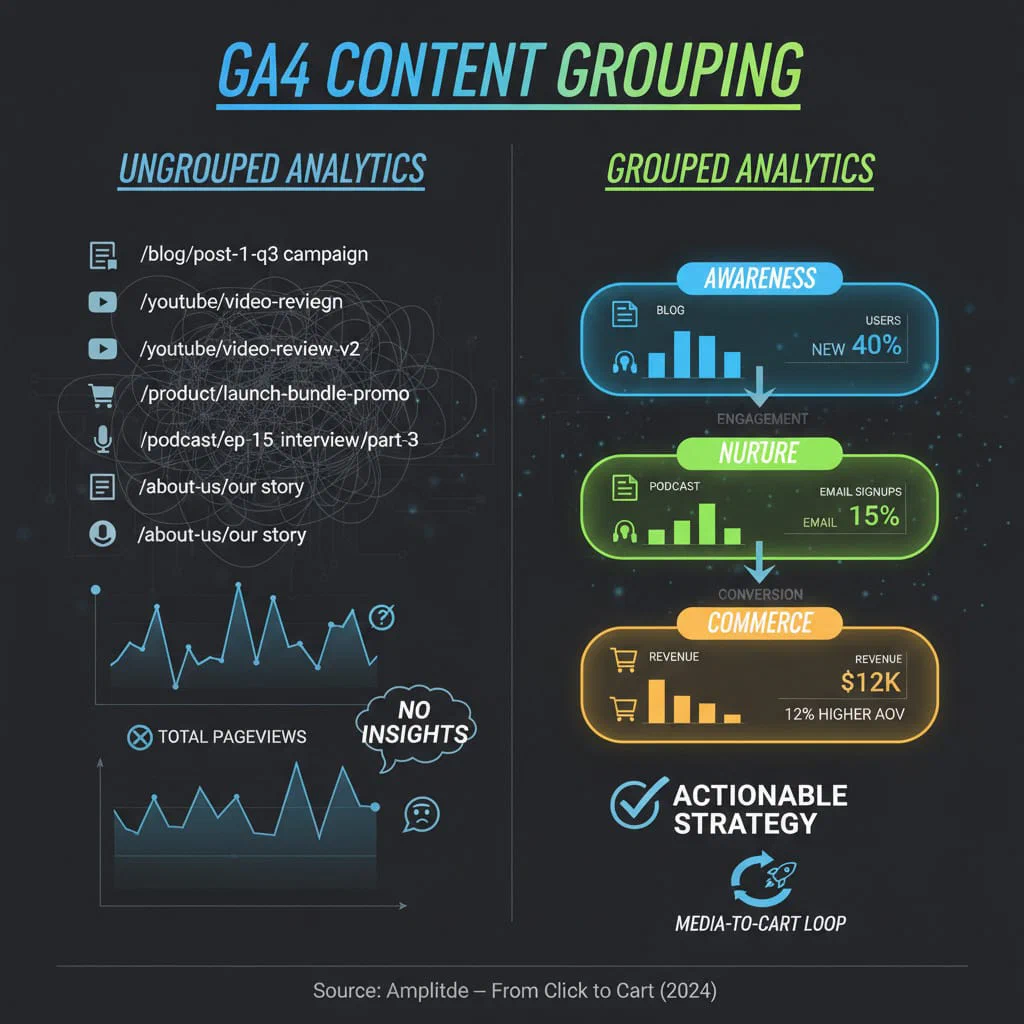
Once grouped, reporting becomes operational. You align content schedules with inventory, identify which narrative themes drive first-time purchases, and forecast future performance based on historical results.
Chartbeat research supports this connection: deeper engagement strongly predicts higher conversion rates.
Case Study: Wellness Brand Intent Grouping
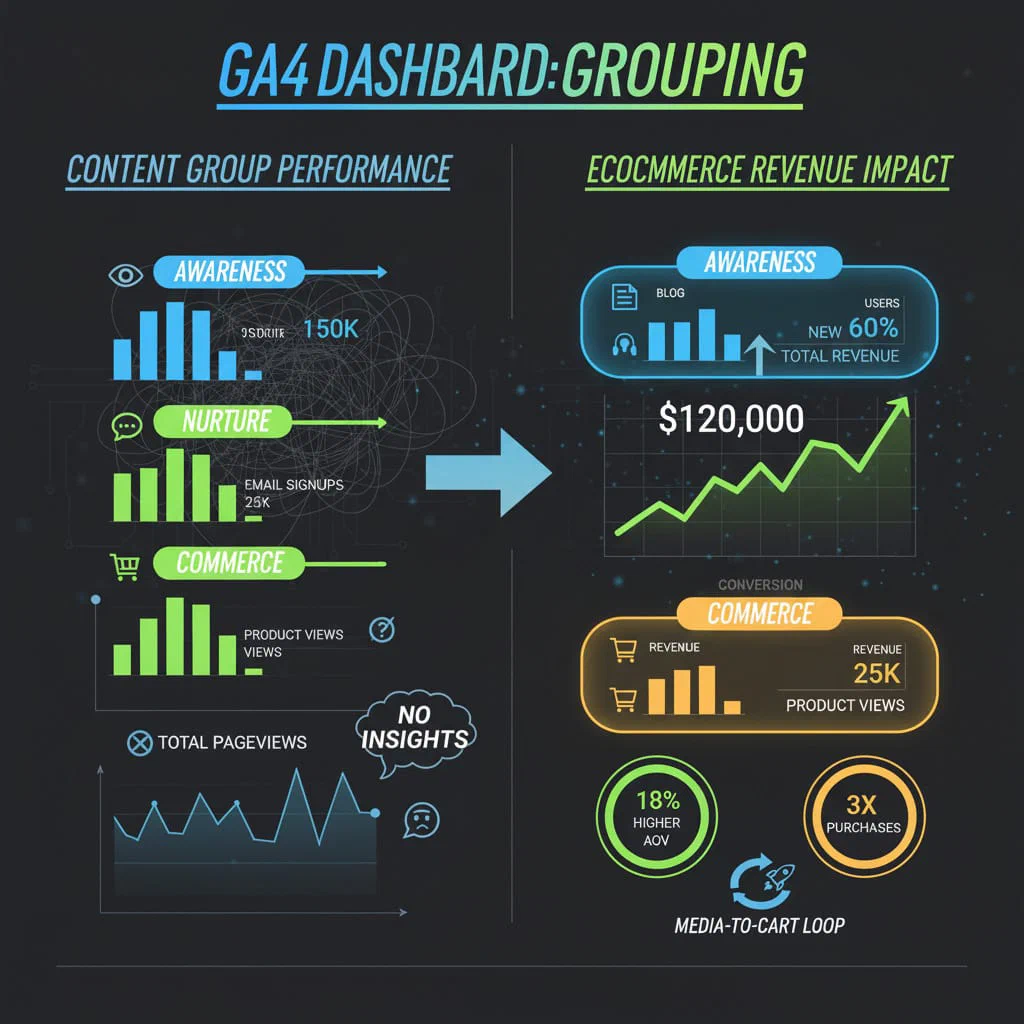
A DTC wellness brand grouped its content by intent rather than format: educate, engage, convert. Over a single quarter, the “educate” category drove a 40% increase in new email signups.
Because they could track the cohort through to revenue, operations identified that “educate” users exhibited a 12% higher first-purchase rate. This direct lift improved the overall MER and reduced blended CAC by $14. The team shifted production budget toward the educate category before the next product launch, expanding gross margin efficiently.
How to Implement GA4 Content Grouping
Step 1: Define Your Content Taxonomy
GA4 permits one primary content grouping per property. You must choose between grouping by format (video, article, podcast) or by intent (awareness, nurture, conversion).
The decision rubric:
- Select format if your primary constraint is production cost. This allows you to calculate ROI by medium and cut expensive, low-converting formats.
- Select intent if your primary constraint is funnel velocity. This helps you fix leaking customer journeys and optimize the path to purchase.
Limit categories to six buckets. Document the definitions in a central ledger.
Before touching a single tag, your taxonomy map should look like this:
| URL Path Contains | Content Group (Intent) | Business Purpose |
|---|
/blog/what-is- | top_funnel_educate | Capture non-brand search, drive email capture |
/guides/ | mid_funnel_nurture | Build product trust, drive add-to-cart |
/case-studies/ | bottom_funnel_convert | Close high-intent traffic, support sales |
Step 2: Implement Custom Parameters via Google Tag Manager
Do not rely on URL structures for grouping. Business logic changes faster than permalinks.
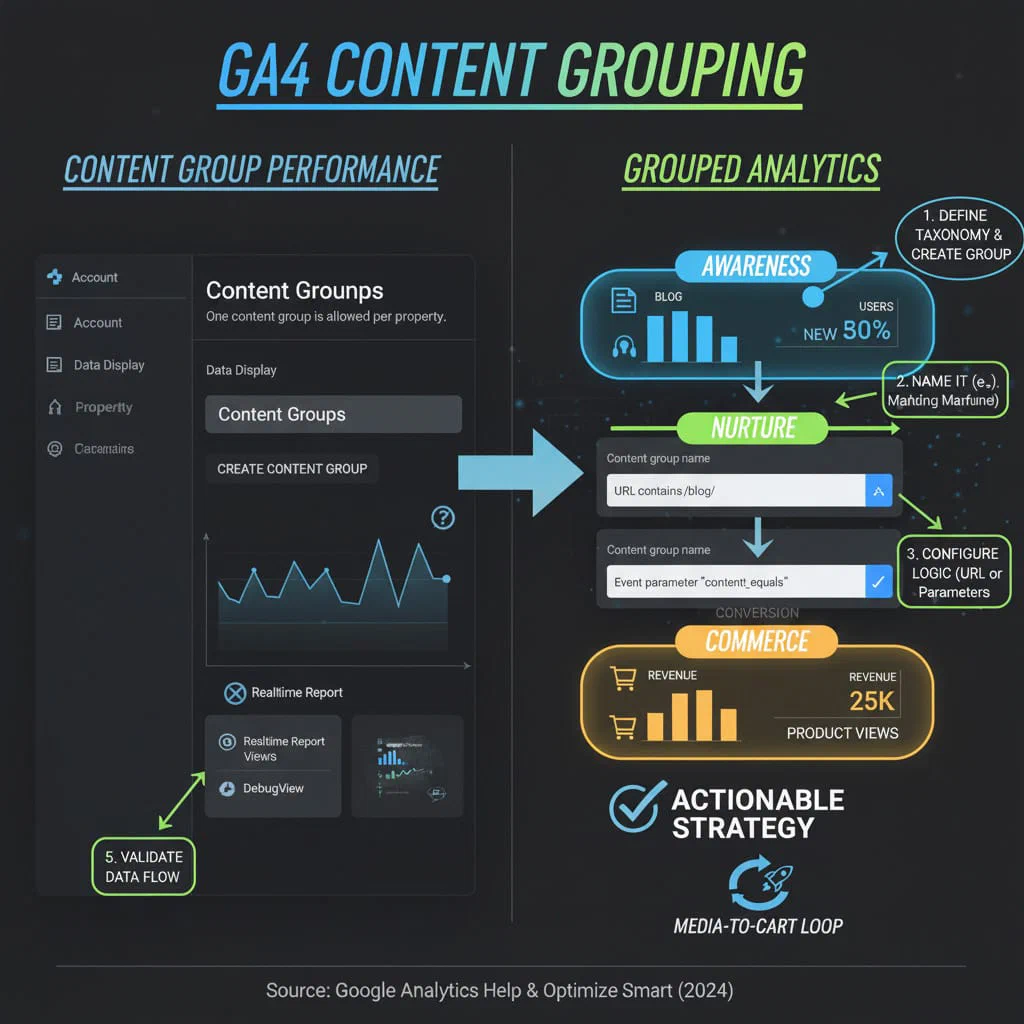
Pass the grouping logic via Google Tag Manager. Create a Data Layer variable in your CMS that outputs the content group for each page. In GTM, open your GA4 Configuration tag. Add a field named content_group and map it to your new Data Layer variable. This ensures the parameter fires automatically with every pageview event.
Configure the interface to recognize your new parameters.
- Open your GA4 property and navigate to Admin.
- Select Data Display, then Custom Definitions.
- Create a new custom dimension.
- Name it “Content Group” and set the scope to Event.
- Select the
content_group event parameter you pushed from GTM.
Allow 24 hours for data to populate. Use the DebugView tool immediately after setup to verify the parameter attaches correctly to incoming events.
Step 4: Establish Strict Governance
Technical configuration alone will not fix your reporting. A perfectly structured GA4 event model still rots without human ownership.
Write down the naming rules and assign a specific owner. Audit the taxonomy quarterly. Check parameter consistency when you introduce new content formats. Trust in the dashboard evaporates the moment ungrouped content skews the reporting. Treat your taxonomy like a core product schema.
Best Practices and Common Pitfalls
- Group by purpose, not platform. The metric is the business goal, not the host.
- Use clear names. Ensure anyone reading the report understands the category immediately.
- Prioritize simplicity. Precision matters more than extreme granularity. Start with four buckets.
- Respect the limit. GA4 allows only one content grouping natively. Plan your taxonomy carefully before implementation.
- Maintain hygiene. Once data becomes unreliable, teams stop using the dashboard entirely.
Related read: Marketing Dashboard Metrics: How to Build Executive-Proof Dashboards
Key Takeaways
GA4 content grouping acts as the connective tissue between creative output and business results. Clarity replaces guesswork. Decisions ground themselves in data rather than noise.
By grouping content based on business logic, you turn reporting into a management tool. You secure a working Media-to-Cart Loop that improves forecasting and protects margin.
TODO: Add [LM-03] GA4 Content Grouping Implementation Checklist CTA